Website feedback notifications in Slack
Send shared website feedback and change summaries to a Slack channel.
A channel message with context
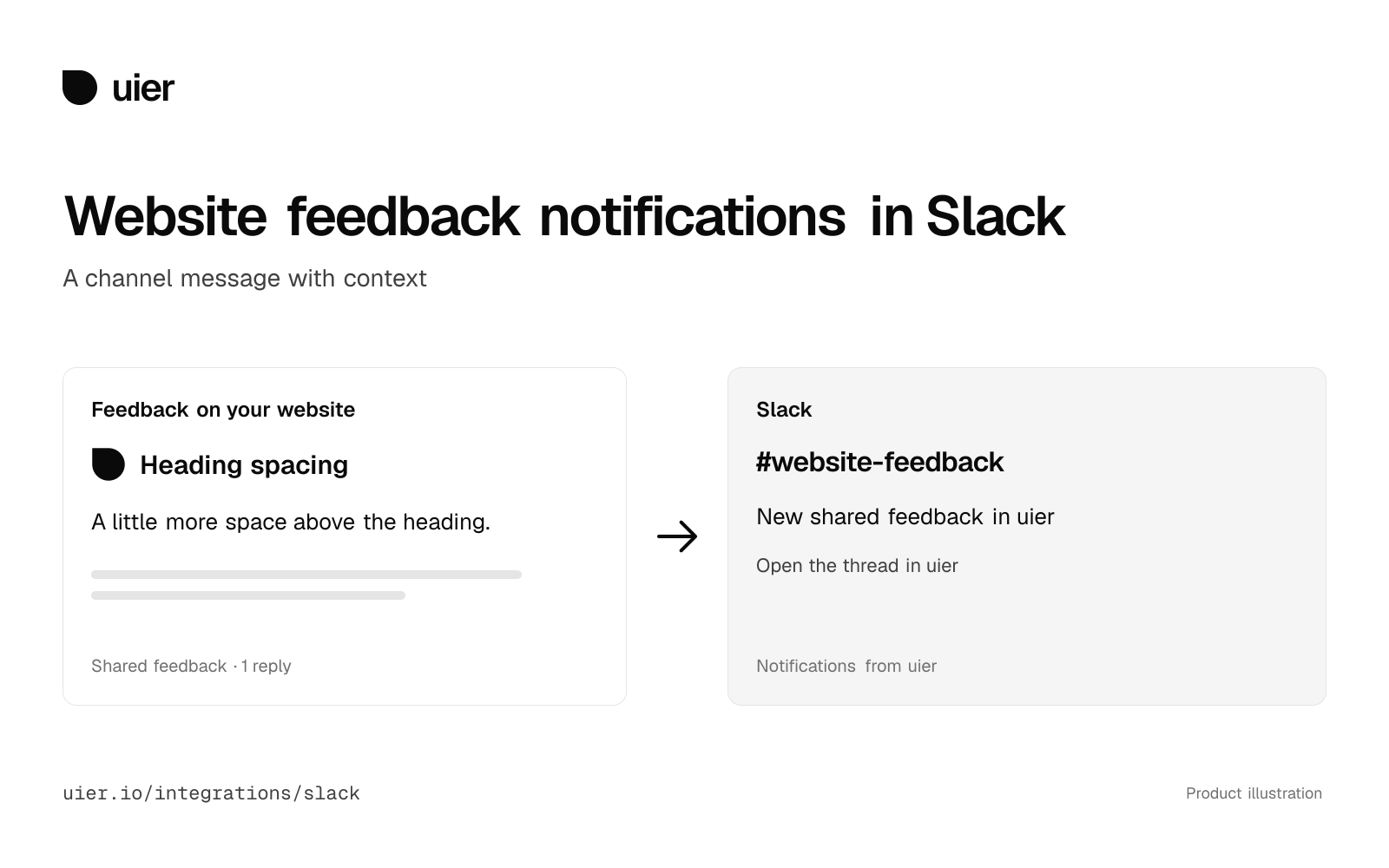
uier posts a bounded excerpt and a link for each new shared feedback thread. It updates the root message and can add summaries of replies and status changes. Optional reply sync copies new replies into the Slack thread and back to uier.
What it does
Optional features stay off until an admin turns them on for the project.
A message for each thread
Each new shared feedback thread posts a short excerpt and a link to one channel. uier keeps that message current.
Reply and status summaries
OptionalA short reply count or the current status, posted in the Slack thread. Choose either or both.
Screenshots stay in uier
Screenshot files are not copied to Slack. The message links to the thread in uier.
Reply sync
OptionalNew replies are copied into the Slack thread, and replies there come back to uier. Edit or delete the original to update its copies.
Backfill
Existing feedback stays silent. Send up to 100 existing shared threads only if you ask.
What you can configure
A workspace admin chooses these on the project’s Slack page, in Settings, then Integrations.
- ChannelRequired
- A public or private channel the uier app has been invited to. Direct messages and Slack Connect channels are excluded.
- Notify about new replies
- Off by default. Sends a short reply count in the Slack thread.
- Notify about status changes
- Off by default. Sends the current open or done status in the Slack thread.
- Reply sync
- Off by default. Starts with replies added after you turn it on. Imported replies show their source and are read-only in uier. Slack asks you to allow reading replies first.
- Test notification
- Sends a message to the channel to check the connection.
- Notifications on or off
- Pause notifications without disconnecting. Existing messages stay.
Backfill and Disconnect are on the same page. Disconnect keeps the copies already made.
Get connected
Start in the project you want to connect.
- Sign in to uier, open or create a project and add its toolbar to your website.
- As a uier workspace admin, open the project’s Settings, then Integrations, and choose Connect on Slack.
- Authorize the uier app in your Slack workspace and invite it to the channel you want to use.
- Load channels, choose a channel and save. Select which changes should produce summaries. Existing feedback is silent unless you explicitly request a backfill.
Access and data
Each project chooses its own destination.
Permissions
Send messages and list accessible public and private channels: chat:write, channels:read and groups:read. Optional reply sync requests channels:history and groups:history through an explicit reconnect. No user tokens or auto-join permission are requested.
What to expect
Notifications can combine changes between background runs. Edits and deleted replies do not create alerts. Imported replies are read-only in uier. Public unlisted distribution is enabled; the app is not listed in Slack Marketplace.
Privacy and disconnect
Private feedback and the public uier showcase are excluded.
Making a thread private or deleting it queues removal of reachable managed messages. Delivered notifications and Slack retention can remain. Disconnect keeps existing messages; remove the app in Slack to revoke channel access.
Read the privacy policy and terms of service.
Help and pricing
Every feature available today is free and will stay free forever. If we introduce pricing, it will apply only to new features users want.
For setup, account or sync problems, email contact@signalco.io. Include the provider and what happened. Keep credentials and private feedback out of your message.
You can also report a product issue, suggest an integration or read about security.