Website feedback in Notion
Turn shared website feedback into pages in your Notion database.
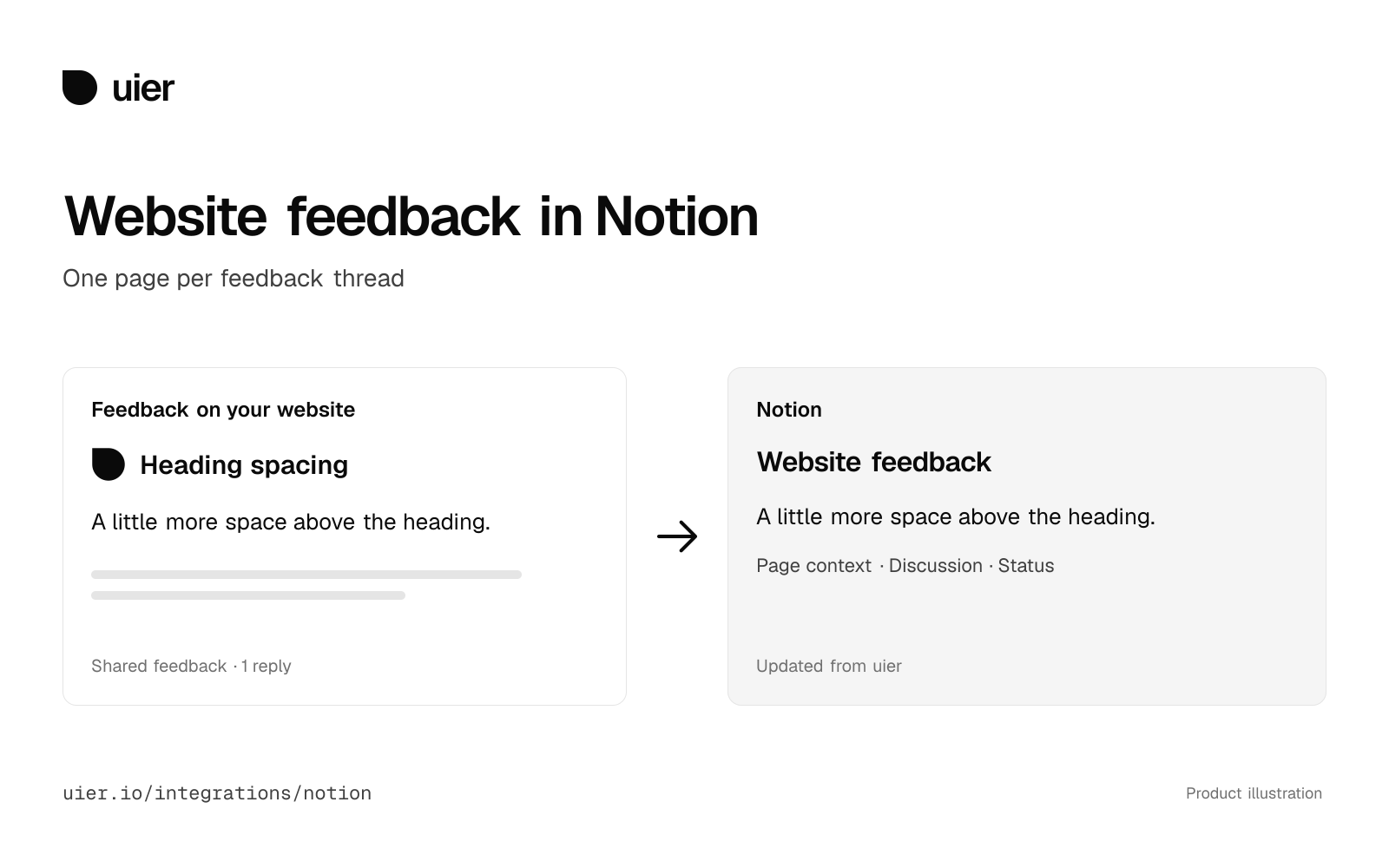
One page per feedback thread
uier creates a page for each shared feedback thread, then updates its text, discussion and page context in the background. Saved screenshots can be uploaded to Notion.
What it does
Optional features stay off until an admin turns them on for the project.
A page for each thread
Each shared feedback thread becomes a page in the database you choose, with its text, discussion and page context. uier keeps the page up to date.
Mapped properties
A title and the uier id are required. Kind, environment, feedback link, reviewed page, created date, assignee and status can fill properties you already have.
Screenshots
The saved screenshot is uploaded into the page. A files property can hold it too.
Two-way status sync
OptionalChanging the mapped status in Notion marks the feedback Open or Done in uier.
Reply sync
OptionalNew replies in uier become page comments, and new page comments come back to the thread. Edit or delete the original to update its copies.
Backfill
Add up to 1,000 existing shared threads when you are ready. Nothing older is copied until you ask.
What you can configure
A workspace admin chooses these on the project’s Notion page, in Settings, then Integrations.
- DatabaseRequired
- A database shared with the uier connection. A database with several data sources lists each one.
- Field mappingRequired
- A title property and a separate rich text property for the uier id. Other properties can stay unmapped.
- Status values
- A Status or Select property and the values for open and done feedback. Needed for two-way status sync.
- Two-way status sync
- Off by default. Status changes made in the connected tool are checked in the background, usually every five minutes. Pending uier changes take precedence.
- Reply sync
- Off by default. Starts with replies added after you turn it on. Imported replies show their source and are read-only in uier. The connection needs the read and insert comment capabilities.
- Sync on or off
- Pause delivery without disconnecting. Existing pages stay.
Backfill and Disconnect are on the same page. Disconnect keeps the copies already made.
Get connected
Start in the project you want to connect.
- Sign in to uier, open or create a project and add its toolbar to your website.
- As a uier workspace admin, open the project’s Settings, then Integrations, and choose Connect on Notion.
- Choose your Notion workspace and share the destination database with the uier connection. The database needs a title property and a separate rich text property for the uier id.
- Choose the database, map those properties and save. New shared feedback will sync in the background. Use Backfill existing feedback to include up to 1,000 existing shared threads.
Access and data
Each project chooses its own destination.
Permissions
Read, insert and update content in the pages and databases you share with the connection. Optional reply sync also needs read and insert comment capabilities. No user-information capability is requested.
What to expect
Changes sync in the background. Optional properties need a field of the matching type. Reply sync includes comments on the linked page, not comments on individual content blocks.
Privacy and disconnect
Private feedback and the public uier showcase are excluded.
Making a thread private or deleting it queues cleanup of reachable managed copies. Notion history and retained files can remain. Disconnect stops future sync and keeps existing copies; remove the connection in Notion to revoke its access.
Read the privacy policy and terms of service.
Help and pricing
Every feature available today is free and will stay free forever. If we introduce pricing, it will apply only to new features users want.
For setup, account or sync problems, email contact@signalco.io. Include the provider and what happened. Keep credentials and private feedback out of your message.
You can also report a product issue, suggest an integration or read about security.